
FAQ Guide
I. Accounting Management
1. Invoice
1.1 How do I download invoices?
You can export and download invoices by going to - - .
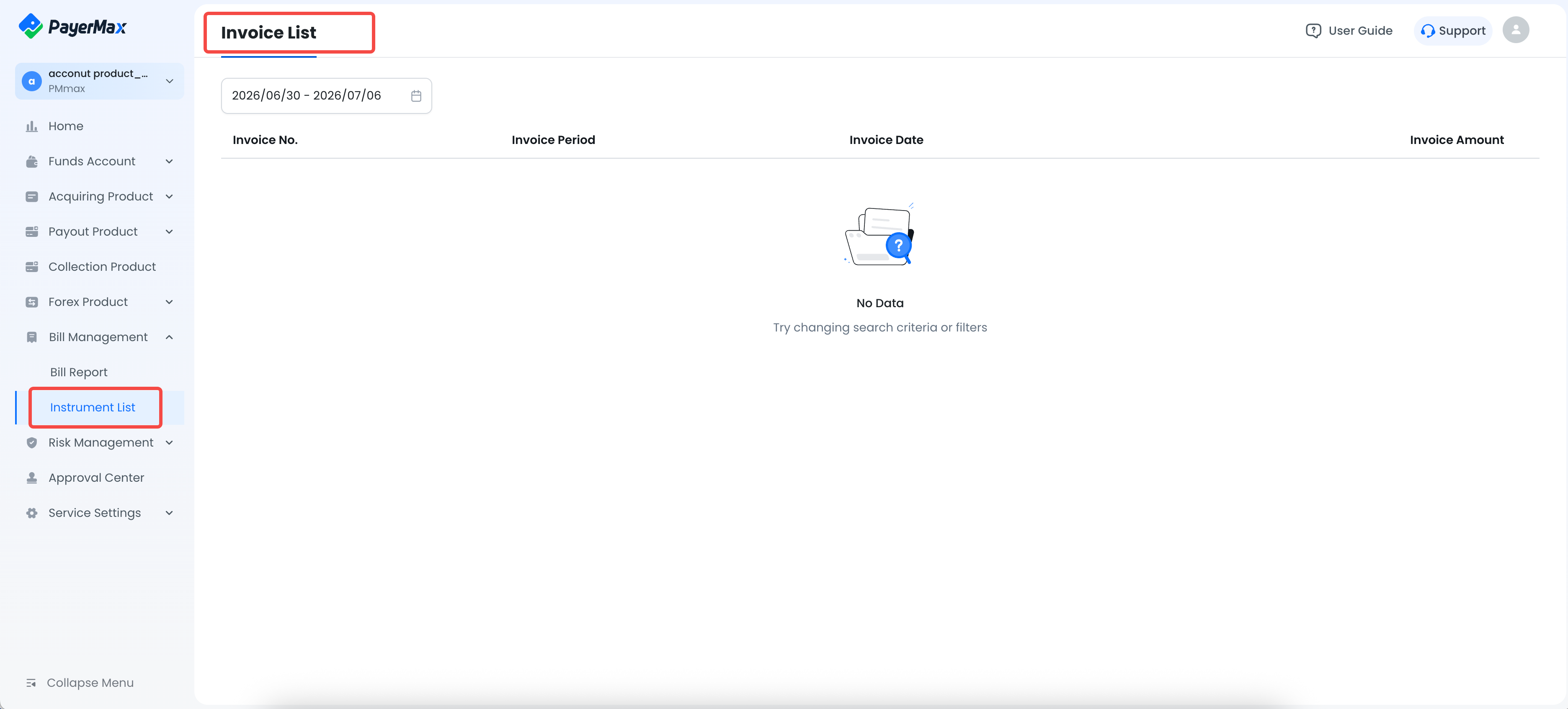
1.2 Why can't I find [Invoice List] in the menu?
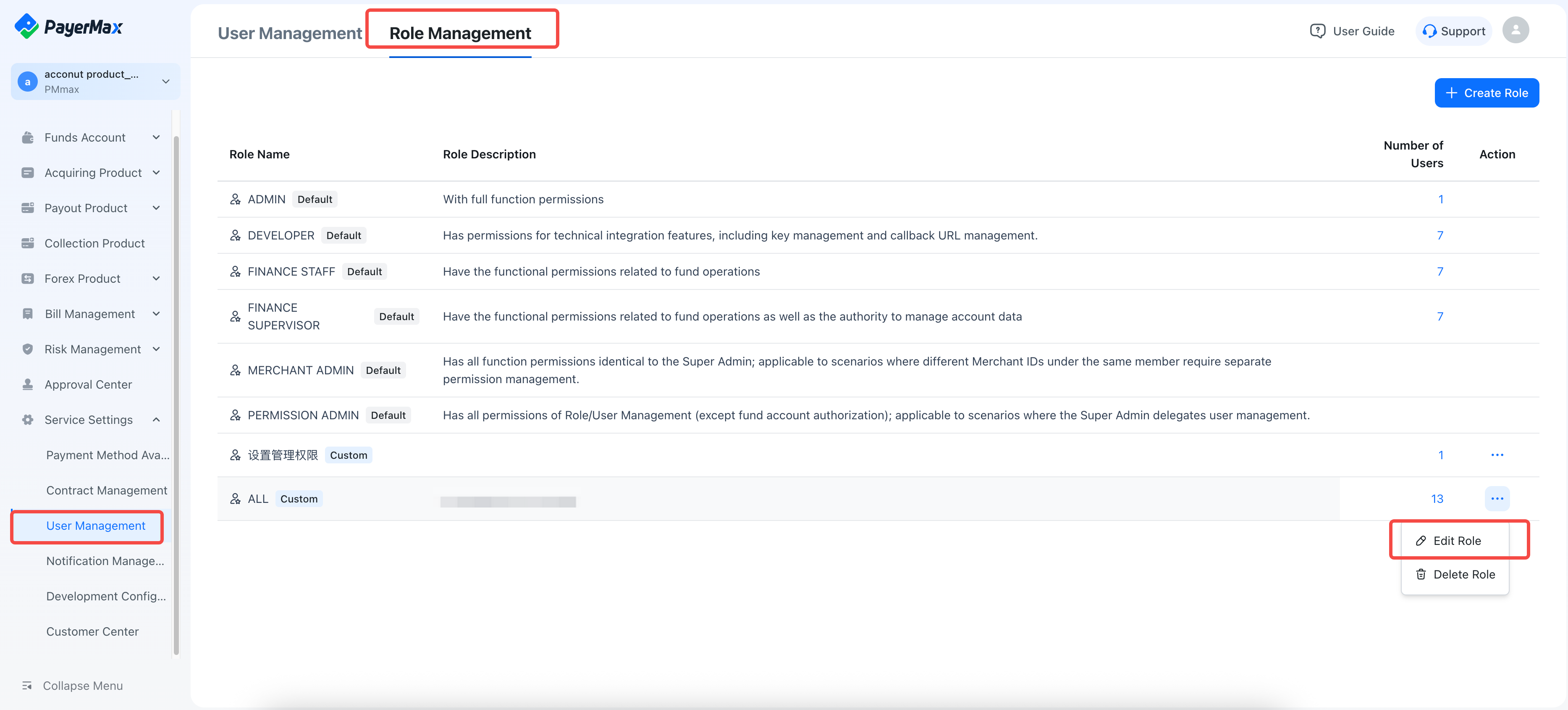
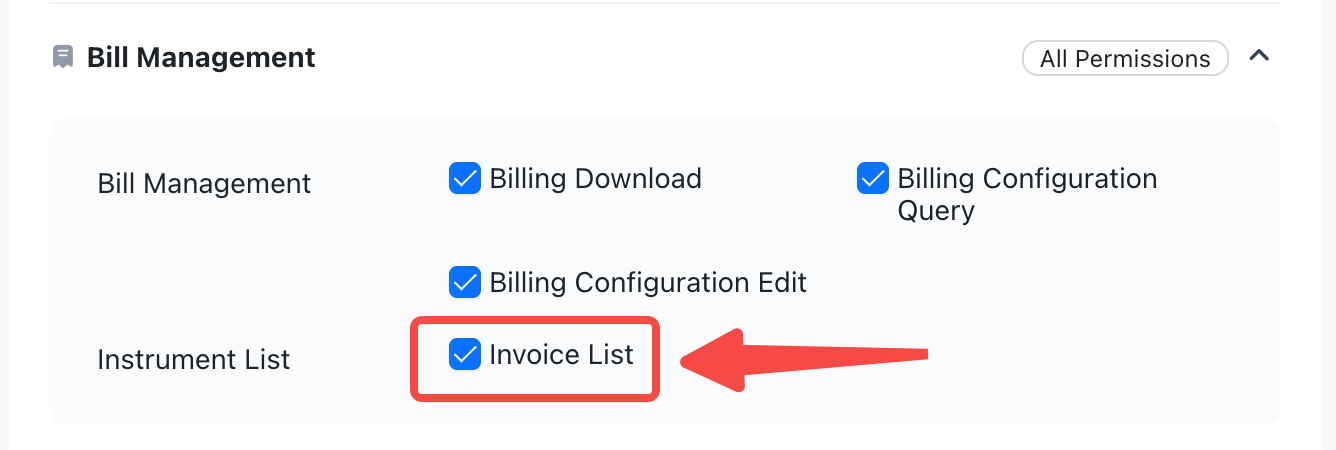
Please contact your administrator to verify your role permissions. If you do not have this permission, ask the administrator to assign it to you as follows:
Go to - - , and check the permission for [Invoice List].
1.3 Why can't I find my invoice in the Invoice List?
Invoices are not generated in real-time and usually take 1 to 2 business days to be generated and pushed to your invoice list. Please be patient. If it is still not displayed after 2 business days, please confirm whether the transaction was successful first, and then submit a ticket for inquiry.
Ticket Inquiry Portal: Please click Support in the upper right corner to enter customer ticket submission, and provide your merchant ID, date range, and order ID (if any) required for invoice issuance.
1.4 Why are the invoice amounts/coverage scopes different between the old and new merchant platforms?
In previous invoices, the invoice fees and withdrawal fees items in the corresponding fund statements only displayed the principal amount of the fees, with taxes not shown separately. The new version of the bill has incorporated taxes into the fee amount. The total transaction amount remains unchanged; only the calculation logic has been optimized to achieve clear display of tax composition and improve the accuracy of bill details.
1.5 Why are invoice amounts aggregated by currency?
The invoice system aggregates by fee currency and business type. Multiple fees under the same fee currency and the same business type will be consolidated and displayed under the same description item.
1.6 What are the invoice types and aggregation rules?
Invoices display descriptions by business type and are aggregated by fee currency.
Invoice description types are as follows:
| Business Type | Invoice Description | Covered Fees |
| Acquiring Business | Payment Service | Acquiring transaction fees, information processing fees, settlement fees, payment collection fees, chargeback alert fees, dispute fees, defense fees |
| Disbursement Business | Disbursement Service | Disbursement fees |
| Collection Business | Collection Service | Collection fees |
| Other Miscellaneous Fees | Other Service | Withdrawal fees |
Aggregation Rules: The invoice system aggregates by fee currency. Multiple fees under the same fee currency and the same business type will be consolidated and displayed under the same description item.
For example, if a merchant incurs acquiring transaction fees, information processing fees, and settlement fees in USD during May, these fees will be consolidated and displayed under the USD Payment Service item.
1.7 Why can invoices only be issued in UTC+0?
Currently, the invoice system only supports generating monthly invoices based on transaction completion time in UTC+0. It does not yet support your selection of UTC+8.
2. Risk Control Security Deposit
2.1 Where can I check information regarding the margin?
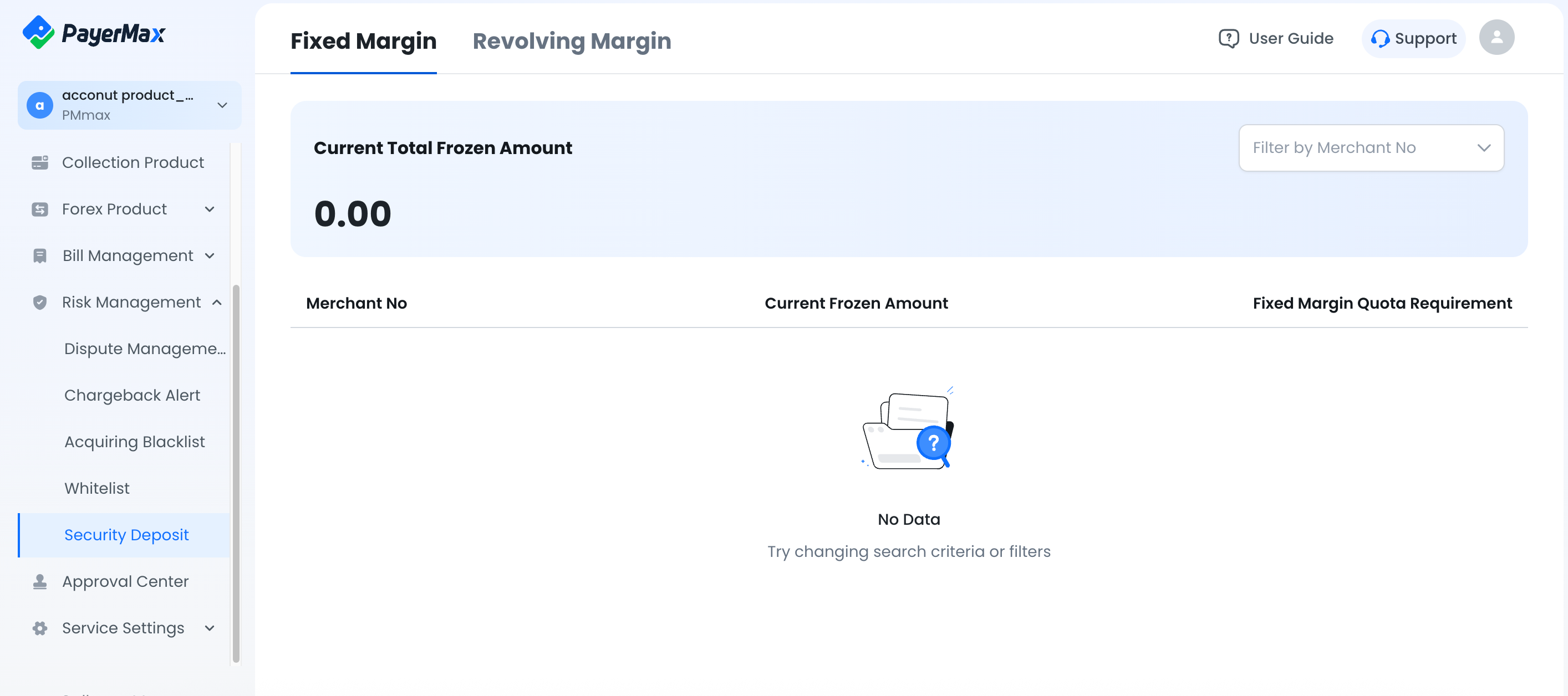
If PayerMax has collected a margin from you, you can check the current margin amount (including fixed deposit and rolling deposit) through the Merchant Portal:
- Fixed Margin: A fixed margin amount collected based on our risk management requirements, which cannot be withdrawn.
- Revolving Margin: A percentage-based margin collected on each transaction according to our risk management requirements. It has a rolling period and will automatically be refunded to your available account upon maturity.
The total amount of the risk control deposit is displayed on - .
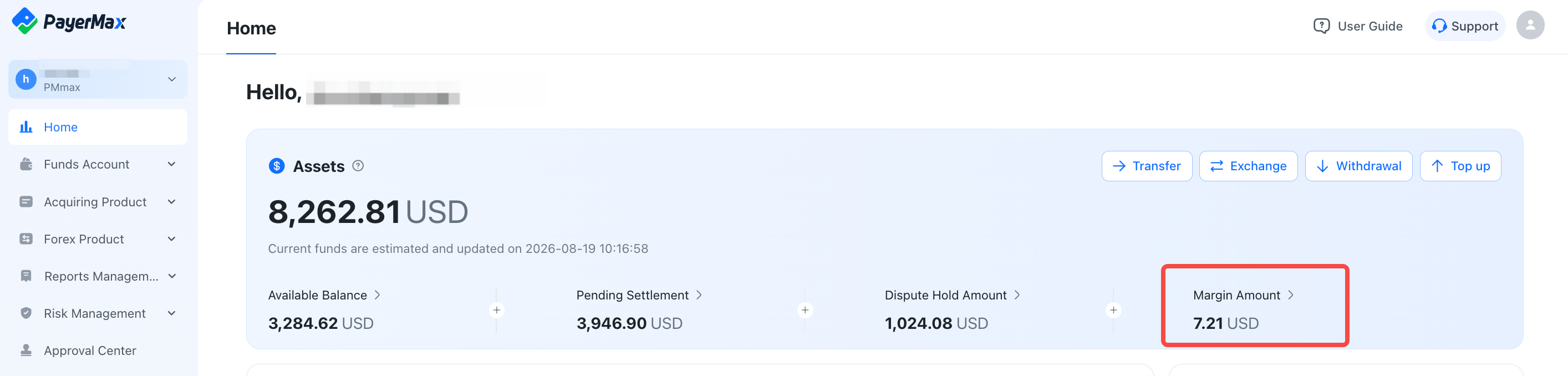
Detailed deposit amounts can be viewed under - .
2.2 Why is the risk control deposit not displayed on the homepage?
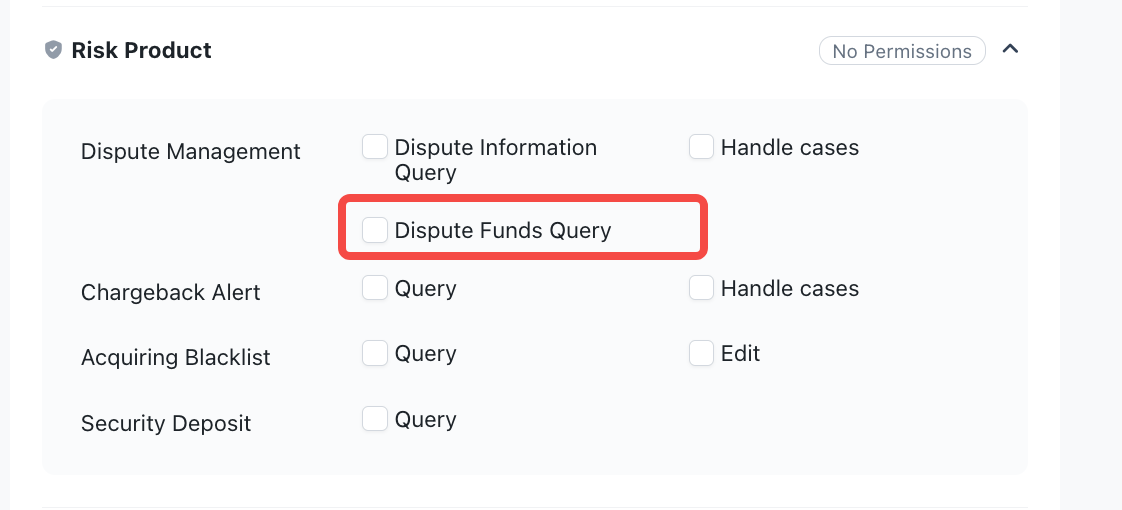
If you cannot view this information on the homepage, it may be due to insufficient permissions. Please contact your Permission Admin OR Admin to check if your role has the permission for Dispute Funds Query.
3. Bill
3.1 What is the difference between the "Settlement" and "Settled" fields in the bill?
- Settlement: Indicates that the order settlement has been completed.
- Settled: Indicates that the transfer or withdrawal operation on the funding account has been completed.
3.2 Why does the monthly acquiring amount not equal the settlement amount?
The monthly acquiring amount refers to the total revenue from all successfully processed transactions in a given month, whereas the settlement amount is affected by the settlement cycle and is typically lower than the acquiring amount. The main reasons are:
Cross‑month settlement timing: Transactions that occur at the end of the month are deferred to the next month's settlement according to the settlement cycle. For example, a transaction on 31 August 2026 will not be included in August's settlement but will be settled in September.
Deduction of fees and taxes: The settlement amount is the net amount actually received after deducting transaction processing fees and applicable taxes, rather than the gross acquiring amount.
The specific settlement rules are subject to the terms stipulated in the signed contract.
II. Account Login
1. Account Permission Assignment
1.1 How do I change the Admin?
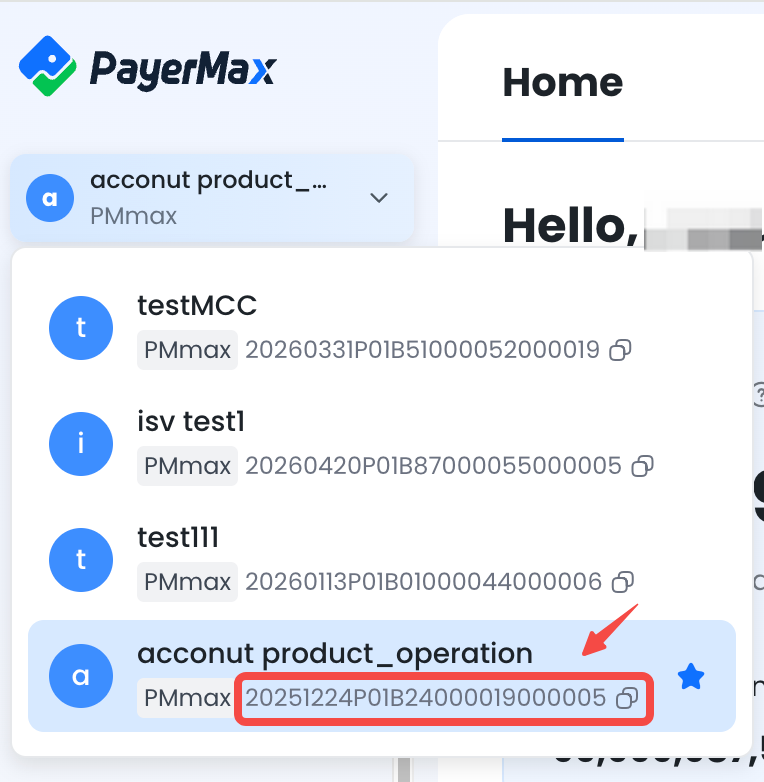
Currently, the Merchant Portal does not support this feature directly. If you need to make changes, please contact your account manager and provide your Account ID for modification. The path to locate your Account ID is shown below:
1.2 Who can manage roles and portal users?
Users with the following roles can manage them:
| Role Name | Management Scope |
| ADMIN | Has full feature and account data permissions; can manage roles and portal users. |
| MERCHANT ADMIN | Has all feature permissions same as the Super Administrator; suitable for scenarios requiring separate permission management for different merchant IDs under a member. |
| PERMISSION ADMIN | Has full permissions for role/user management (except funding account authorization). |
1.3 Which permissions cannot be assigned and require using system default roles as needed?
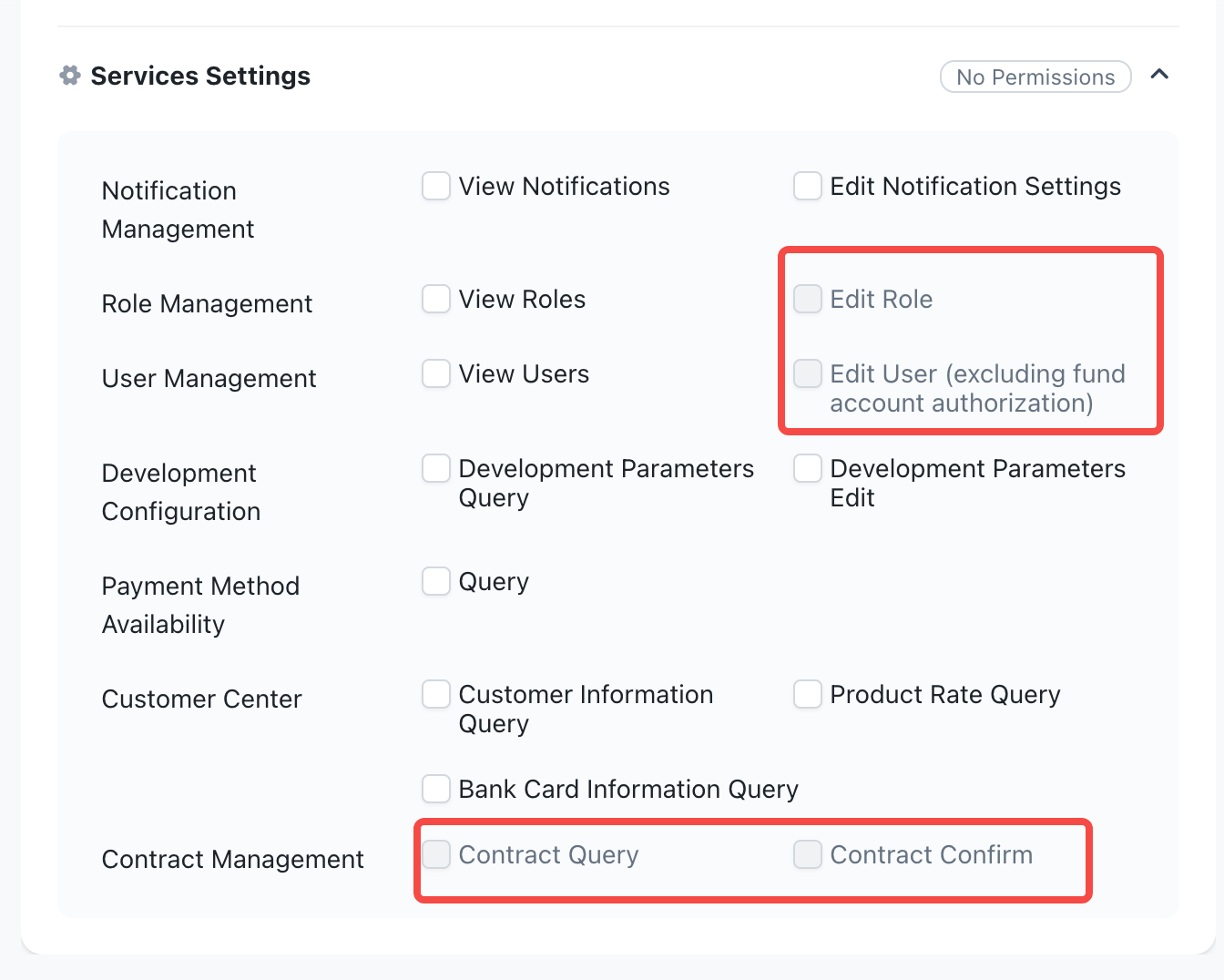
In the Settings Service directory, permissions including Edit Role, Edit User, Contract Query, and Contract Confirm cannot be assigned by creating new roles. They can only be accessed using system default roles as needed.
2. Personal Settings
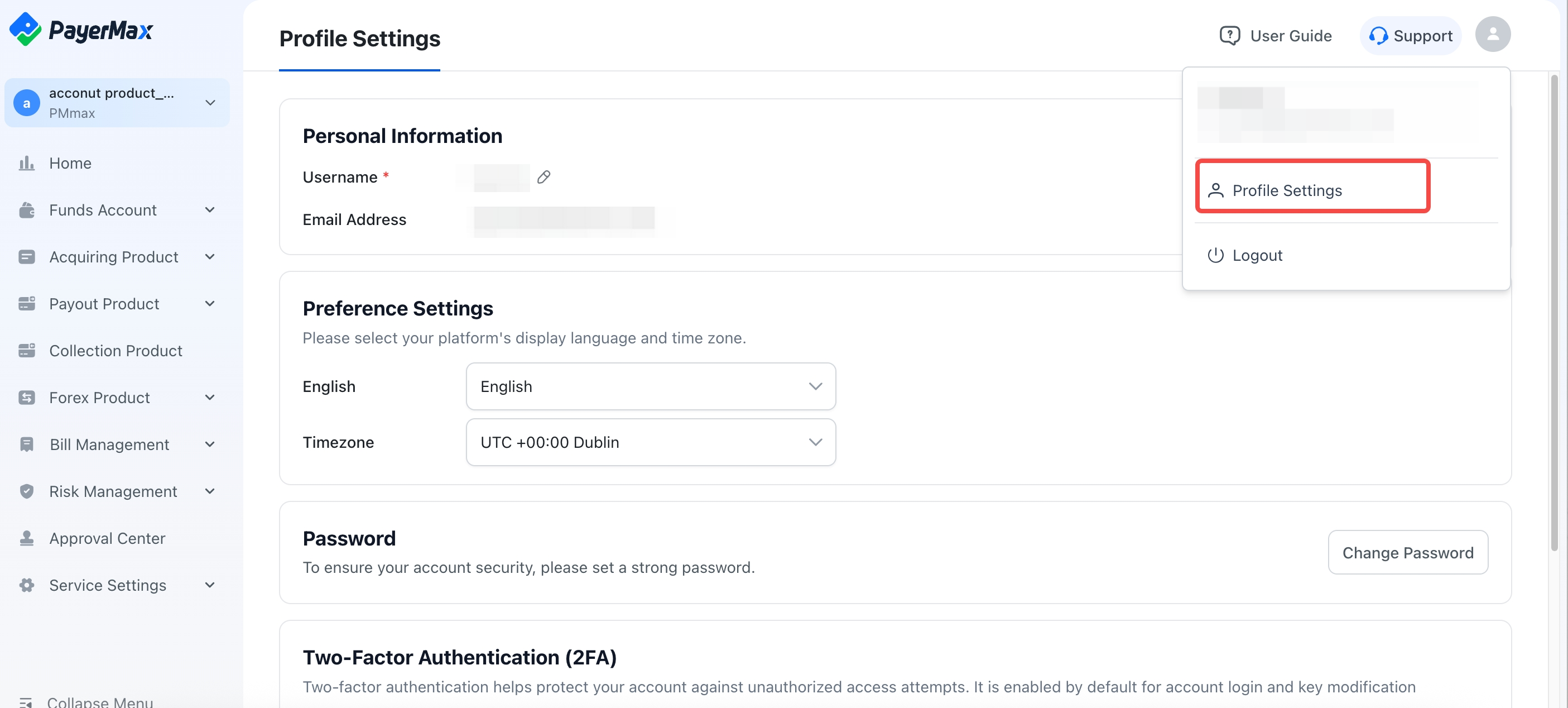
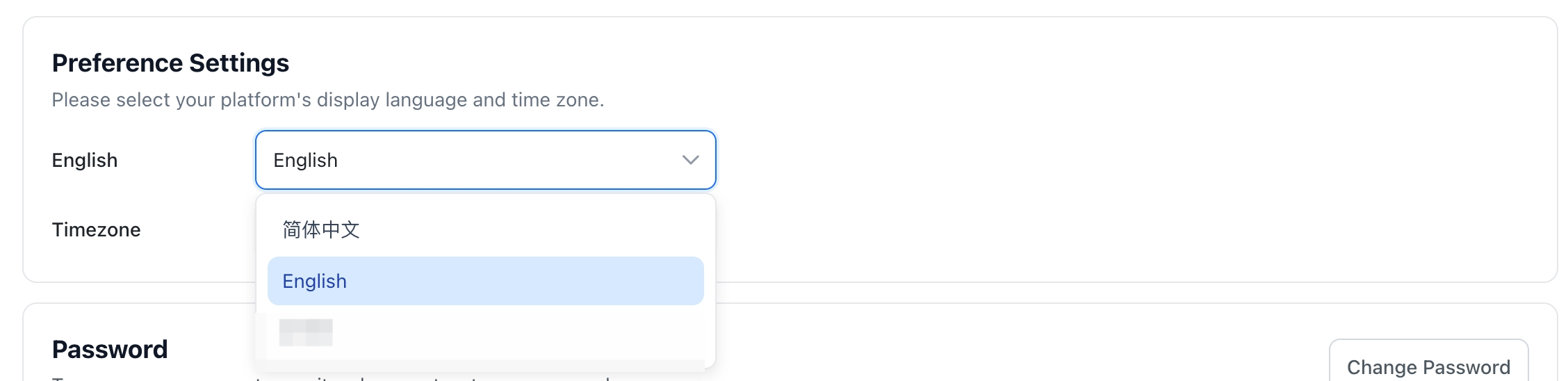
2.1 How do I switch languages?
Click the avatar icon in the upper-right corner - . Under Preferences, you can switch between Chinese & English.
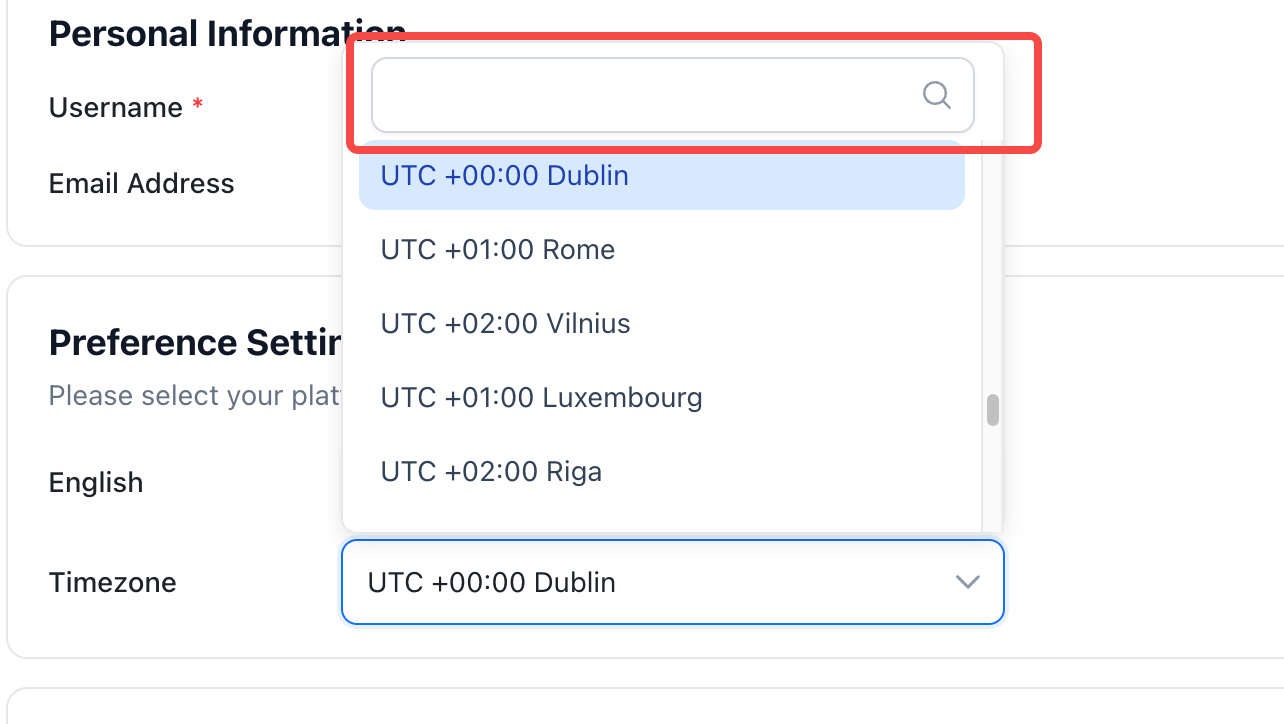
2.2 How do I change the time zone?
Click the avatar icon in the upper-right corner - . Under Preferences, you can set different time zones.
III. Customer Information Management
1. Contract Management
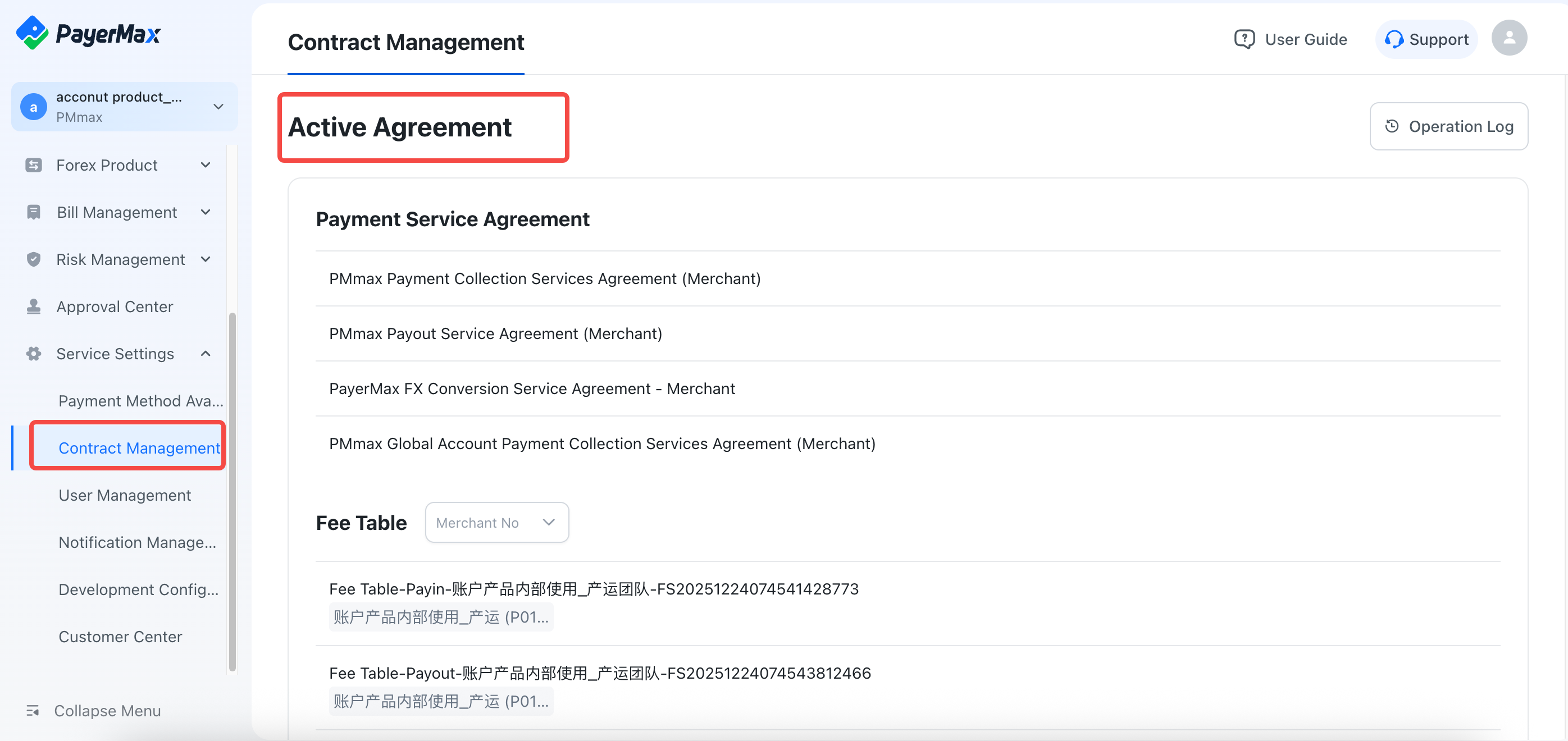
1.1 How do I view agreements and fee schedules?
Go to - to view currently active agreements and fee schedules.
Note:
Only online-signed agreements and fee schedules are displayed here. If your agreements/fee schedules were signed offline, please contact your account manager and provide the corresponding Merchant ID to view them.
1.2 Why is the agreement signing button not visible on the homepage after logging in as Admin?
It may be because the onboarding process is not yet completed even though the Admin account has been created. In this case, please contact your account manager to confirm the progress and complete the onboarding process as soon as possible.
1.3 Which roles can view/confirm agreements and fee schedules?
Only the Admin / Merchant Admin among system default roles have this permission.
2. Merchant Information Management
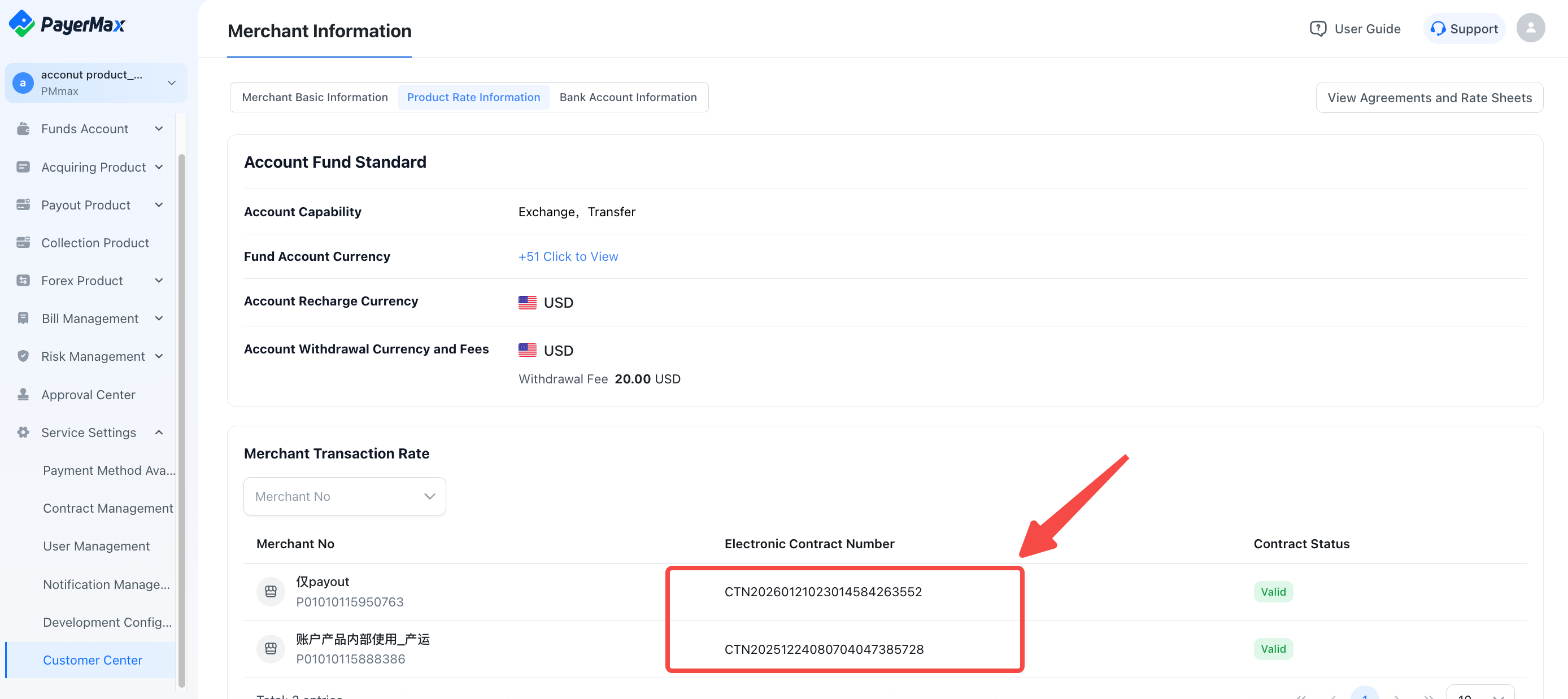
2.1 How do I view contract/rate information?
Path: Go to - - , then click contract data.
Under this directory, you can view the customer's account balance standards and contract details corresponding to different Merchant IDs under the customer. Click on a contract to view enabled payment methods and their rate details.
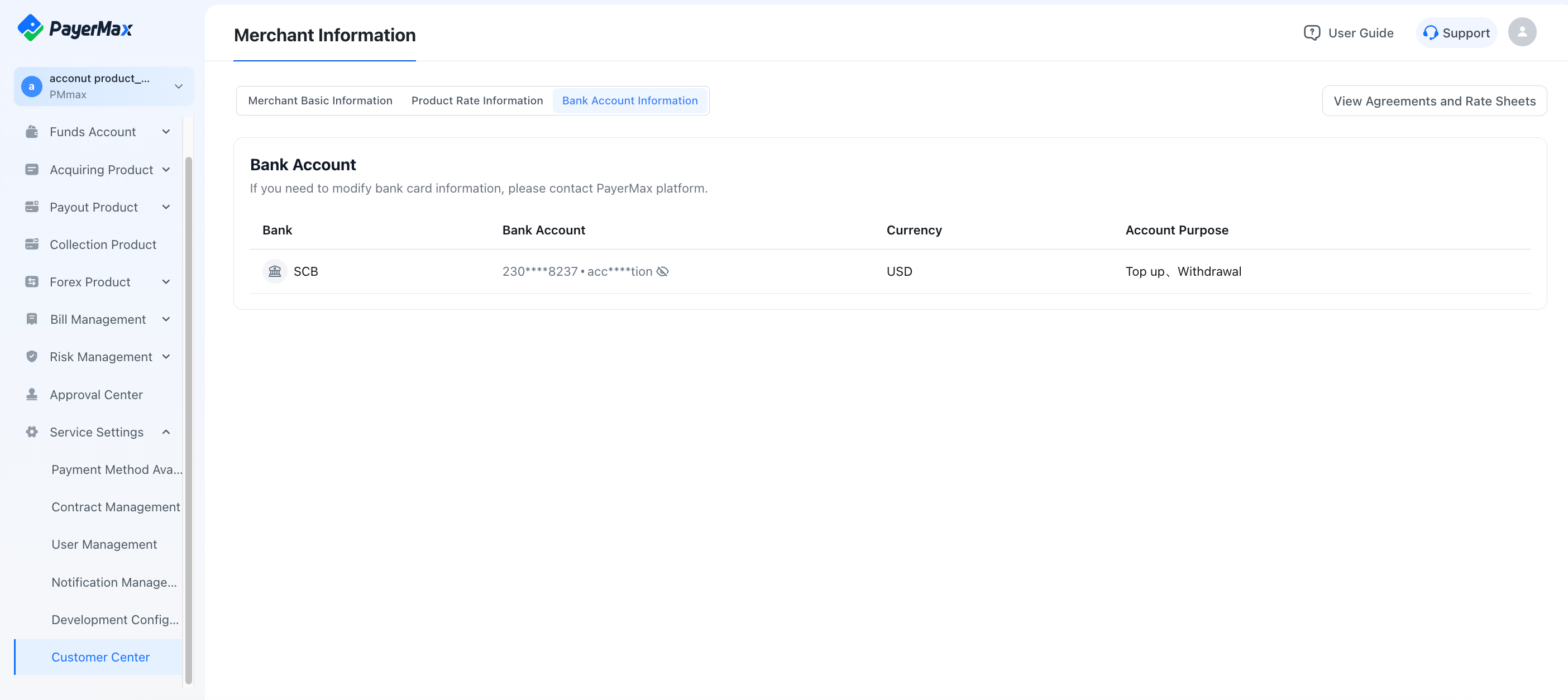
2.2 How do I view bank account information?
Path: - -
Under this directory, you can view the bank card information linked to this Member ID.
2.3 How do I modify bank accounts?
Currently, self-service modification is not supported. Please contact your account manager and provide the corresponding Account ID to request changes.
3. Payment Method Availability Query
3.1 Why can't I find the merchant's payment method availability?
This may be due to the following reasons:
The merchant has not completed the contract conversion process, and the contract is not yet active;
The user has not been granted permissions for this Merchant ID. Please contact the Admin to assign permissions.
IV. Funding Accounts
1. Creating Funding Accounts
1.1 How many funding accounts can be opened under one account?
The system default limit is 30. If you have special requirements, you can submit a ticket to contact our staff for custom configuration.
Ticket Submission Portal: Click Support in the top right corner to enter and submit a customer ticket.
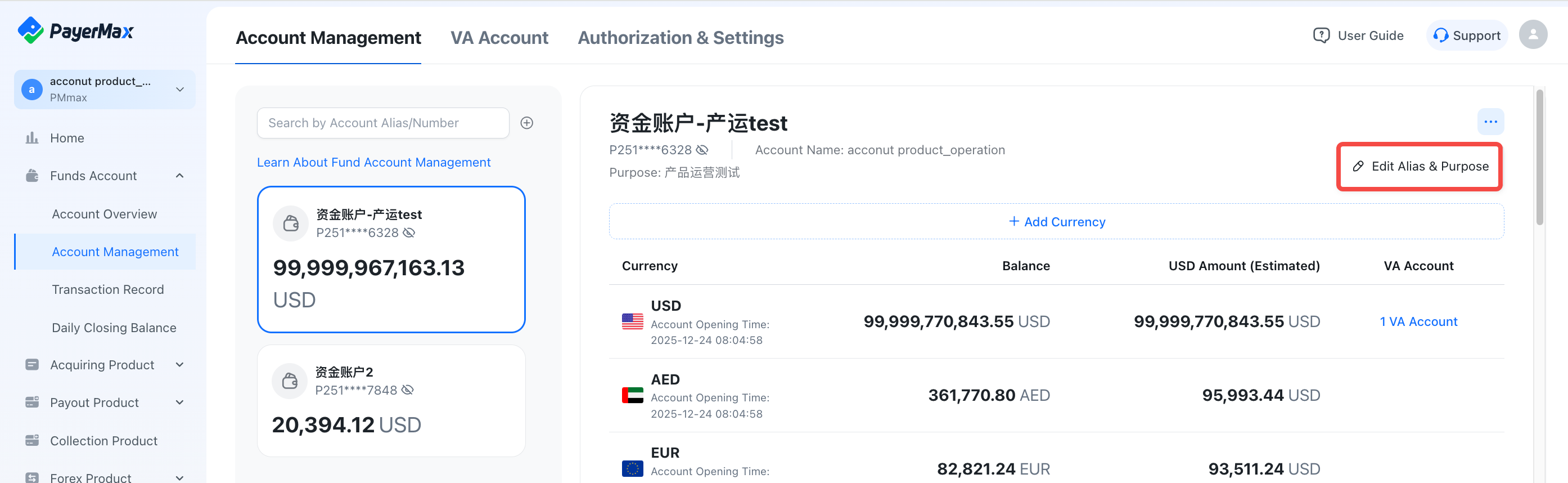
1.2 How do I modify the name of a funding account?
Go to - , select the funding account to be modified, and click [Edit Alias & Purpose].
2. Top-Up
2.1 What is the SLA for top-up crediting?
VA Top-up: Once funds reach the PMX bank account, they are generally credited on the same day.
Non-VA Top-up: Once funds reach the PMX bank account, they are generally credited in T+1 business days.
If you need urgent crediting, click
Supportin the top right corner to submit a ticket inquiry.
Ticket Inquiry Portal: Click Support in the top right corner to submit a customer ticket, providing your order ID for inquiry.
2.2 How do I know if top-up funds have reached PMX?
You can check via two methods:
Top-up transaction query: Status shows [Success];
Funding account income & expense details: View specific crediting records and balance.
2.3 What is the maximum number of VA top-up accounts that can be set up?
A maximum of 10 can be set up under one account by default.
3. Transfer
3.1 How do I transfer funds between different accounts?
Currently, standard platform capabilities only support transfers between different funding accounts under the same account ID. Initiating transfers across different account IDs is not supported. Please contact your account manager if needed.
4. Withdrawal
4.1 Must the currency of the withdrawal bank account match the target currency?
Yes, PMX will process payouts according to the target amount/currency.
4.2 What is the SLA for withdrawal services? Is there a minimum amount limit?
Withdrawal applications are supported 24/7, but the PMX payout SLA is T+1 business days. By default, the minimum target amount is 1,000 USD.
To adjust the minimum settlement threshold, please contact your account manager.
5. Funding Account Authorization
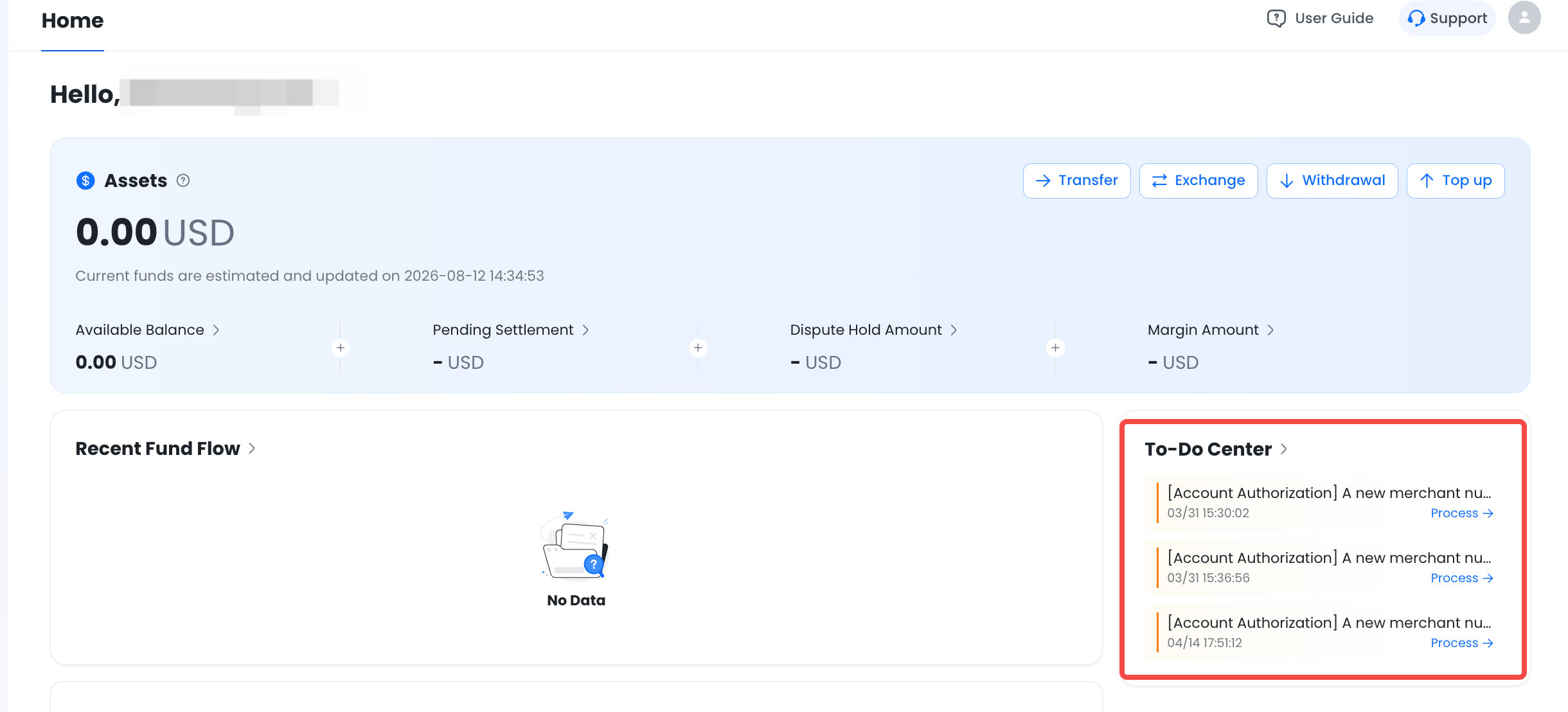
5.1 Why can't first-time logged-in users find the funding authorization entrance?
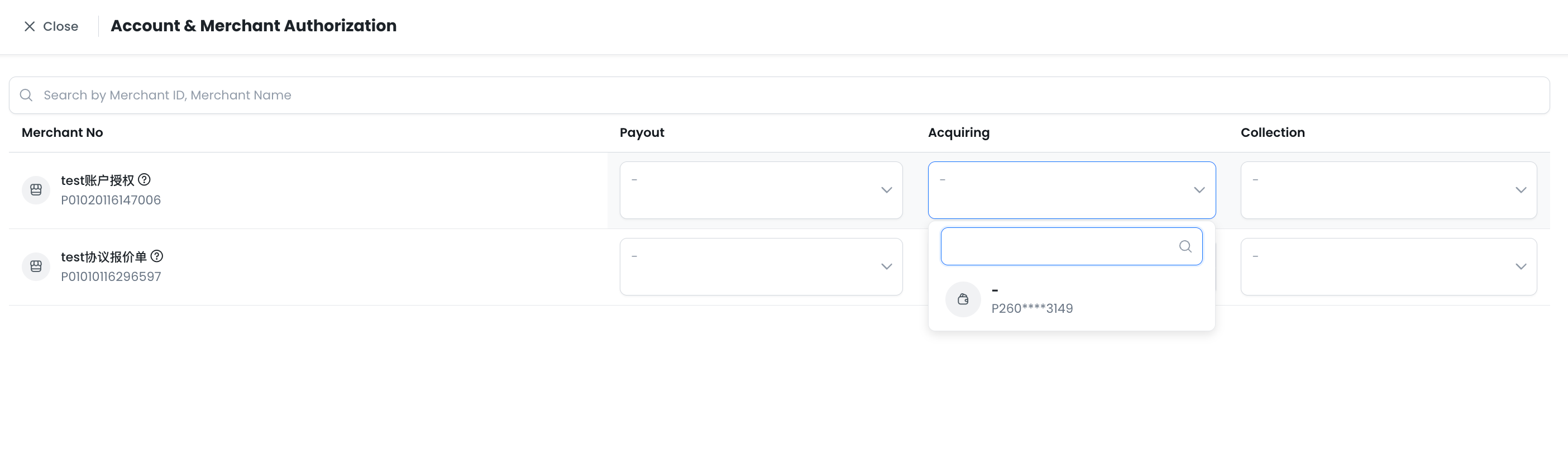
After the merchant confirms the agreement, a to-do prompt will appear on the page. Click to proceed and complete the funding authorization:
Only system-created default funding accounts can be selected:
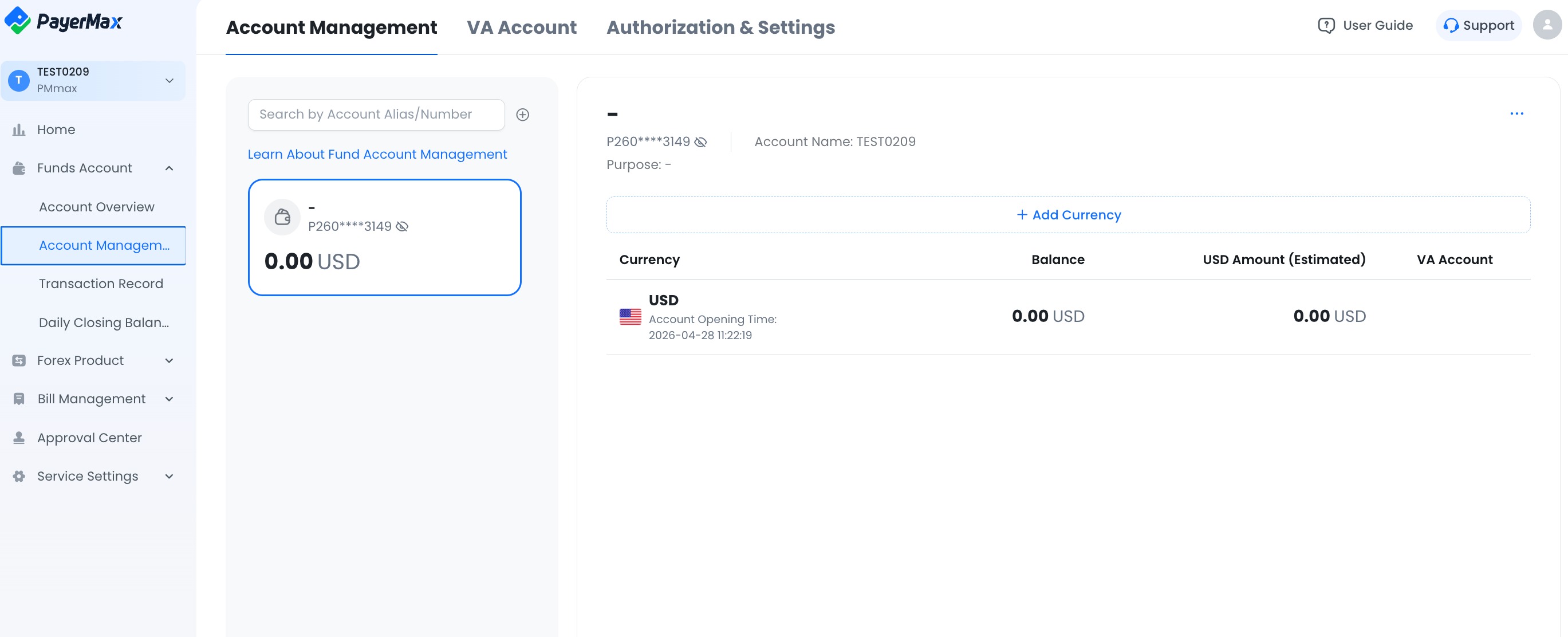
After refreshing the page, Account Management will appear in the navigation bar, enabling you to open new funding accounts:
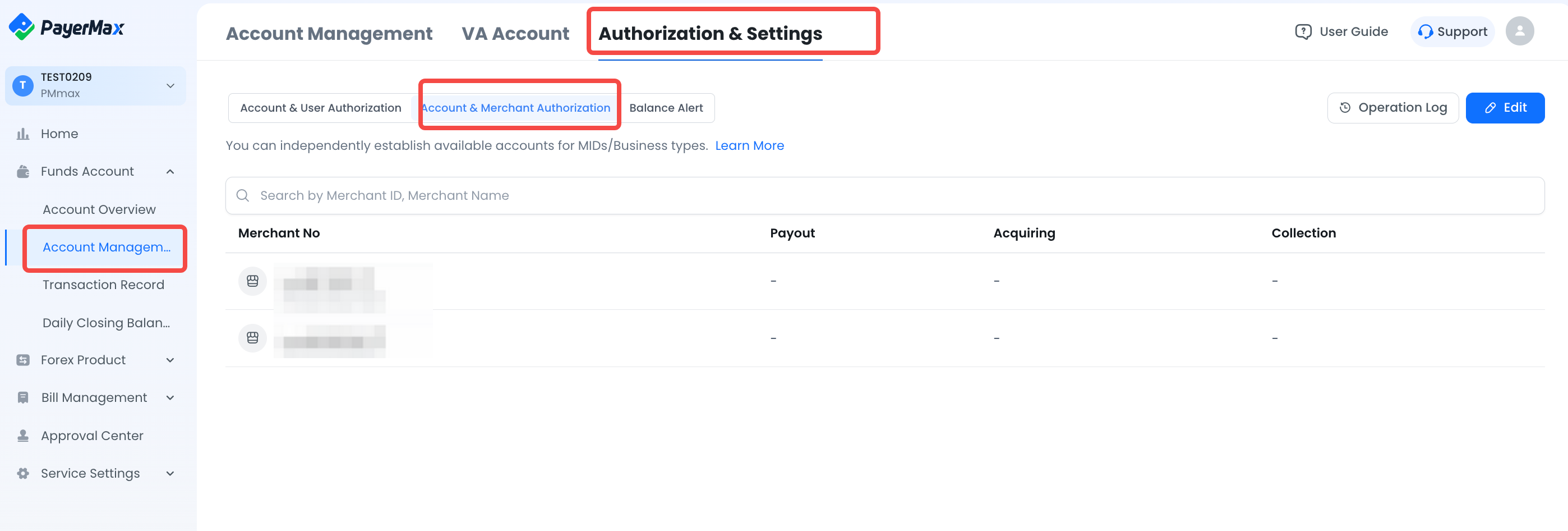
5.2 How do I view/modify the authorized funding accounts for different merchant ID services?
Path: - - -
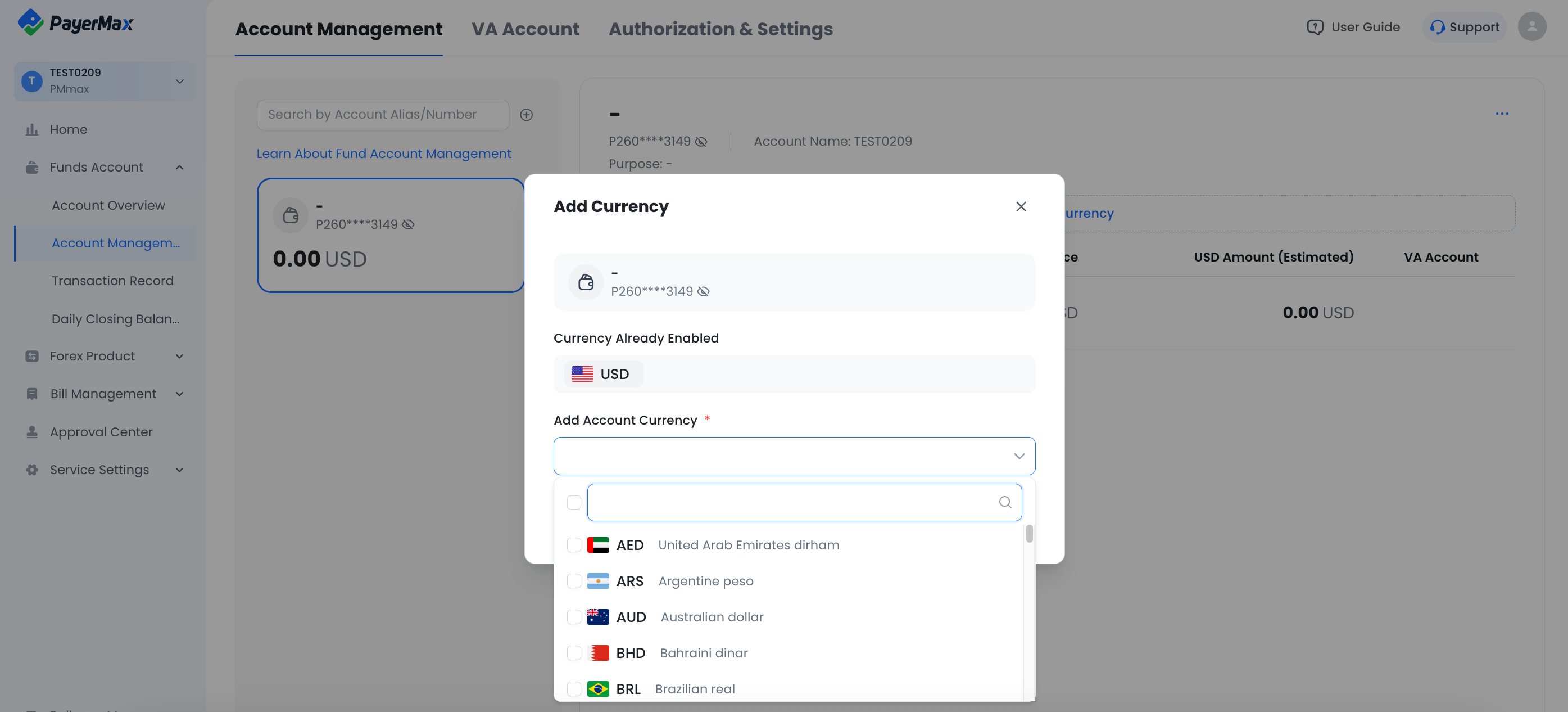
5.3 How do I view currencies supported for opening funding accounts?
Go to - to view options. The dropdown list displays all currencies supported by PayerMax (top-up and withdrawal currencies configured by BD).
V. Global Acquiring
1. Refund
1.1 Under what conditions can a refund be initiated?
An order must meet the following six conditions before a refund can be initiated:
Only successfully paid orders can be refunded;
Orders already in the refund process cannot be refunded again;
Successfully refunded orders cannot be refunded again;
Refunds can be initiated within 180 days after successful payment;
Ensure the account balance is sufficient to cover the refund;
Confirm whether the initiator has permission to request refunds. If conditions are not met but a refund is still needed, PayerMax Disbursement Service can be used instead.
Note:
Some payment methods do not support refunds. Please refer to the actual display on the page.
1.2 How do I initiate a refund, and what is the processing time?
- If the payment method supports refunds, you can apply using the following methods:
- Initiate a refund via - - page;
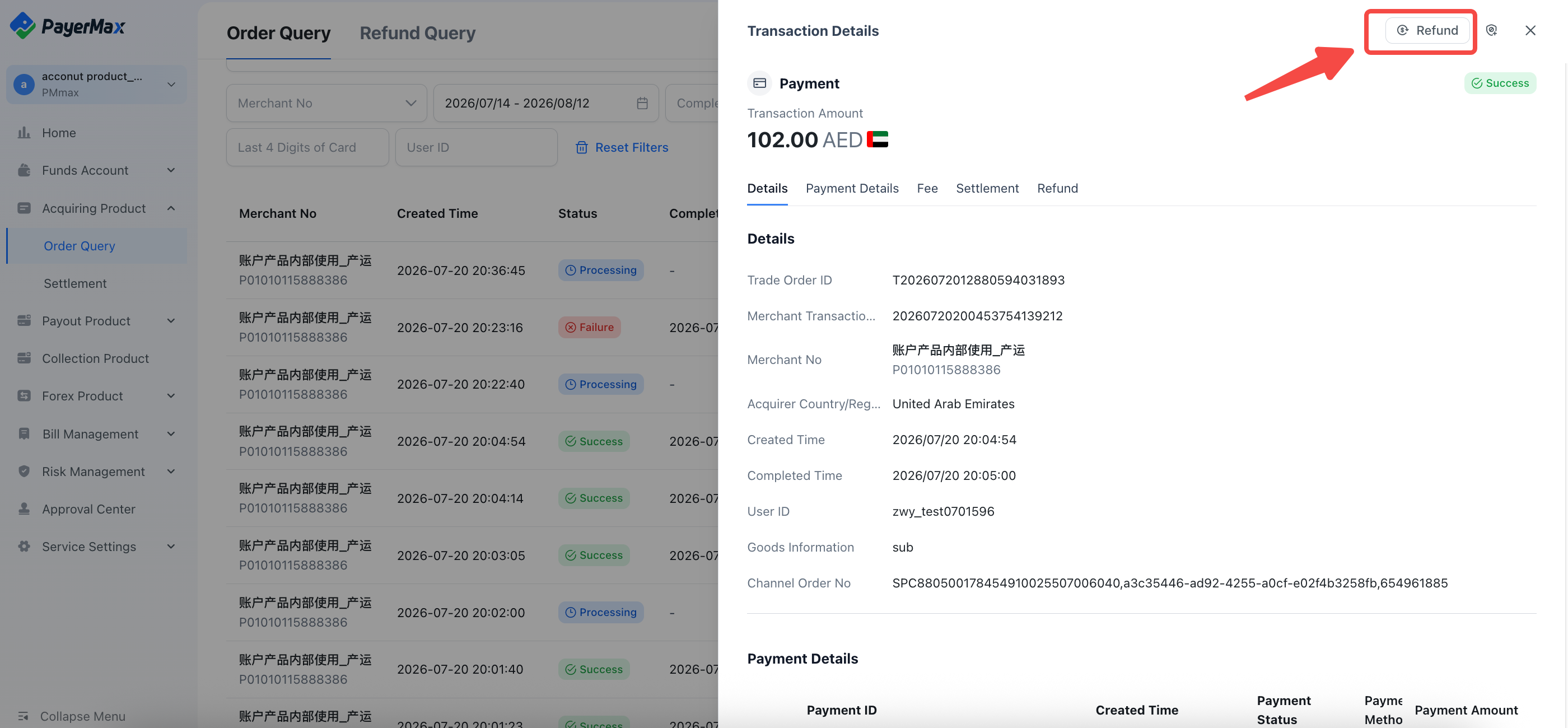
- Call the refund API to submit a request.
How long will it take for users to receive the refund after initiation:
After submitting a refund request, the order refund status generally updates within one week. Arrival time depends on channels/banks, usually within 21 days.
1.3 Why does the refund status show successful, but the user hasn't received the money?
Refund success indicates only that the channel has accepted the refund application. Actual arrival time varies due to channel limitations. Once accepted, funds are expected to return to the user's original payment account within 1–21 days.
Due to channel constraints, refund status only reflects application acceptance. Actual processing status queries are currently not supported. Generally, channels follow this pattern: funds return to the original payment account within 1–21 days post-acceptance.
Merchants can inform customers using this guideline. If issues persist, submit a ticket.
Ticket Inquiry Portal: Click Support in the upper right corner to enter ticket submission, providing your Merchant ID and Order ID for assistance.
2. Settlement
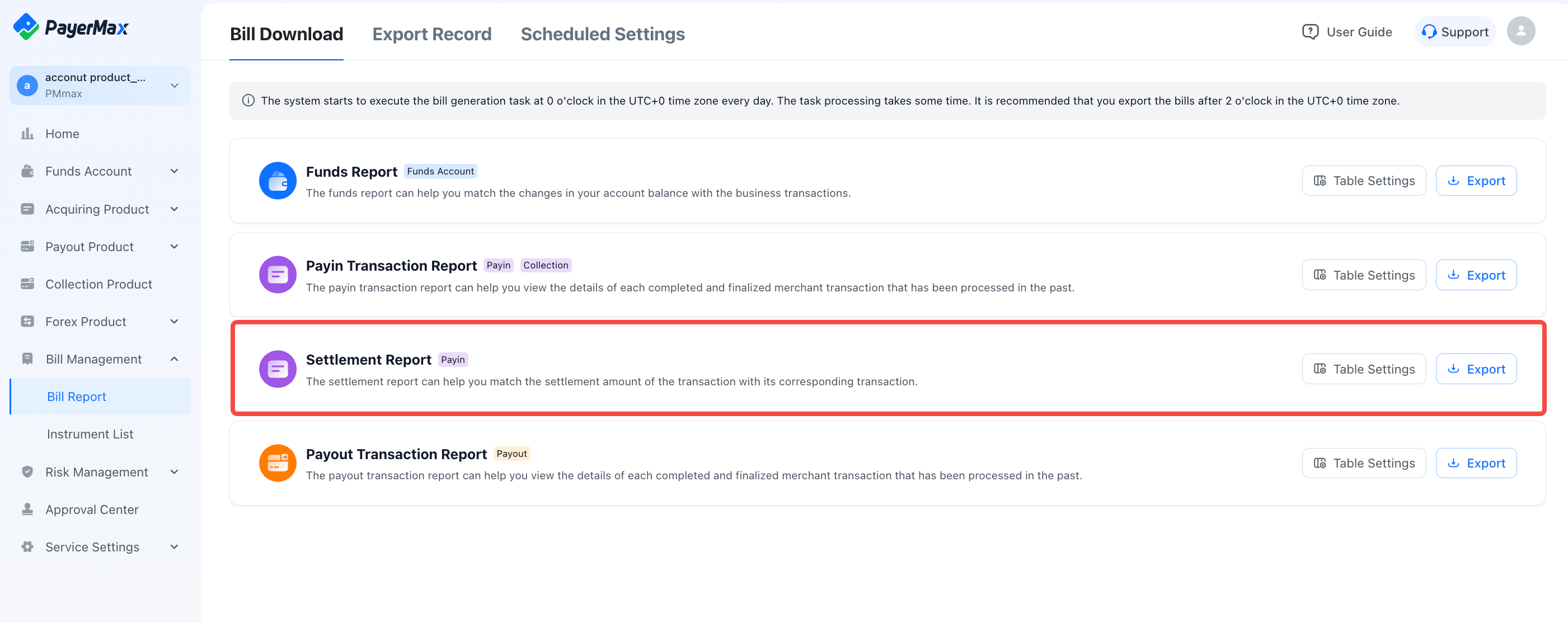
2.1 How do I export settlement statement data for a specific period?
Path: - -
3. Disputes
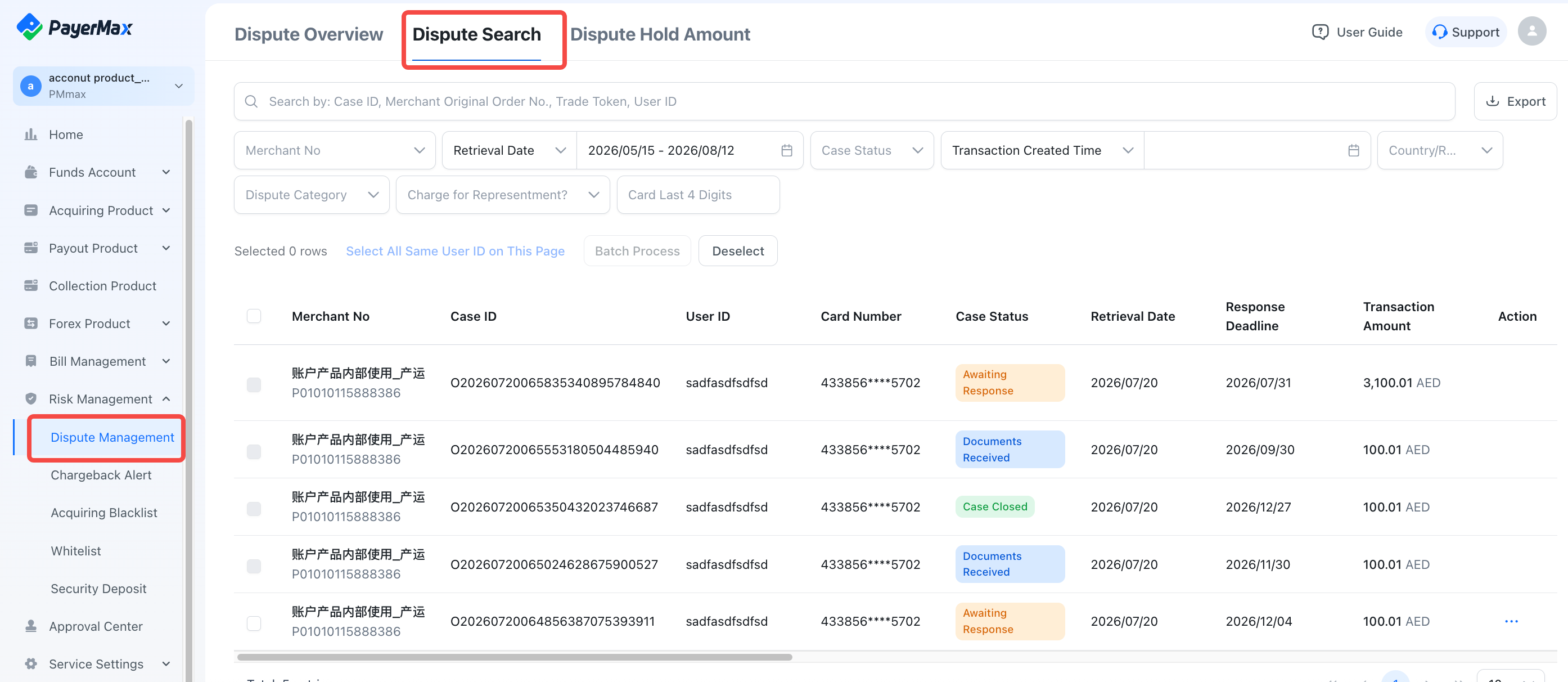
3.1 How do I query disputed orders?
There are two methods:
- Via Merchant Portal: Go to - -
- Request PayerMax technical support to integrate dispute callback webhooks.
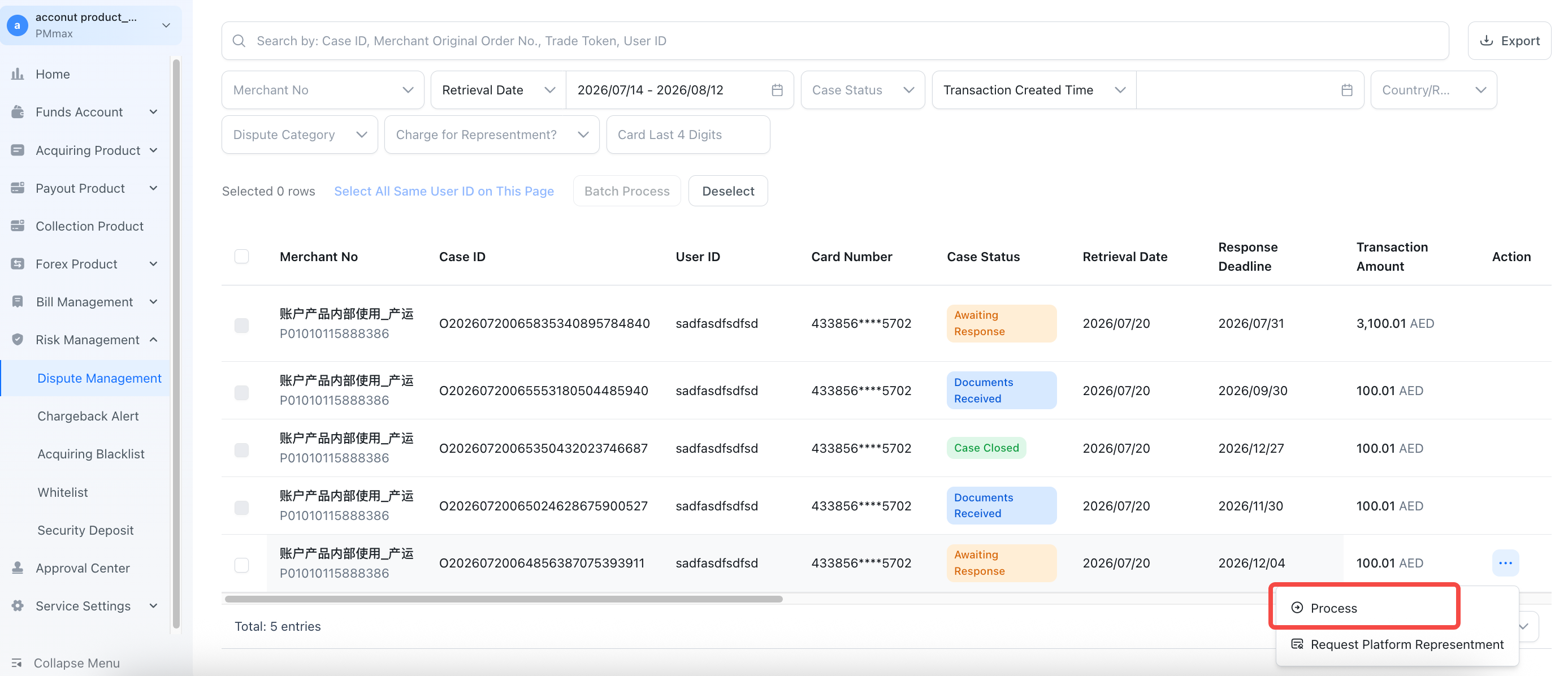
3.2 How do I upload defense evidence?
Evidence Upload Path: - - -
3.3 Why am I unable to submit defense materials?
The request for information period for this order has expired. If you wish to continue processing this order, please contact customer support by submitting a customer ticket.
Ticket Inquiry Portal: Click Support in the upper right corner to enter and submit a customer ticket, providing your case number for inquiry.
VI. Global Payouts
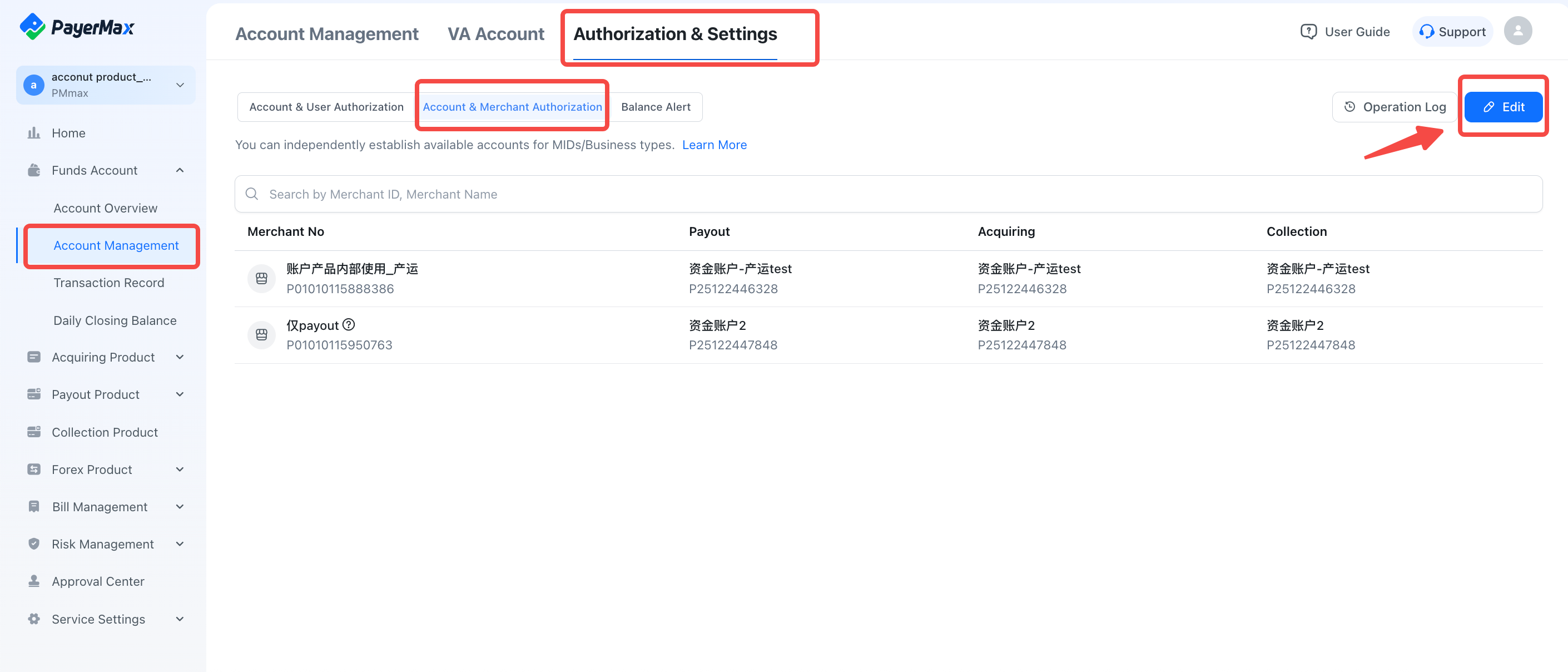
1. Why can't I successfully process a payout?
Before initiating a payout, go to [Funding Account Authorization Management] to allocate a corresponding funding account for your payout service.
Authorization Path: - - -
2. How long after creating a payout order can I query order details?
Single payouts can be queried immediately after creation. Batch payouts may experience slight delays.
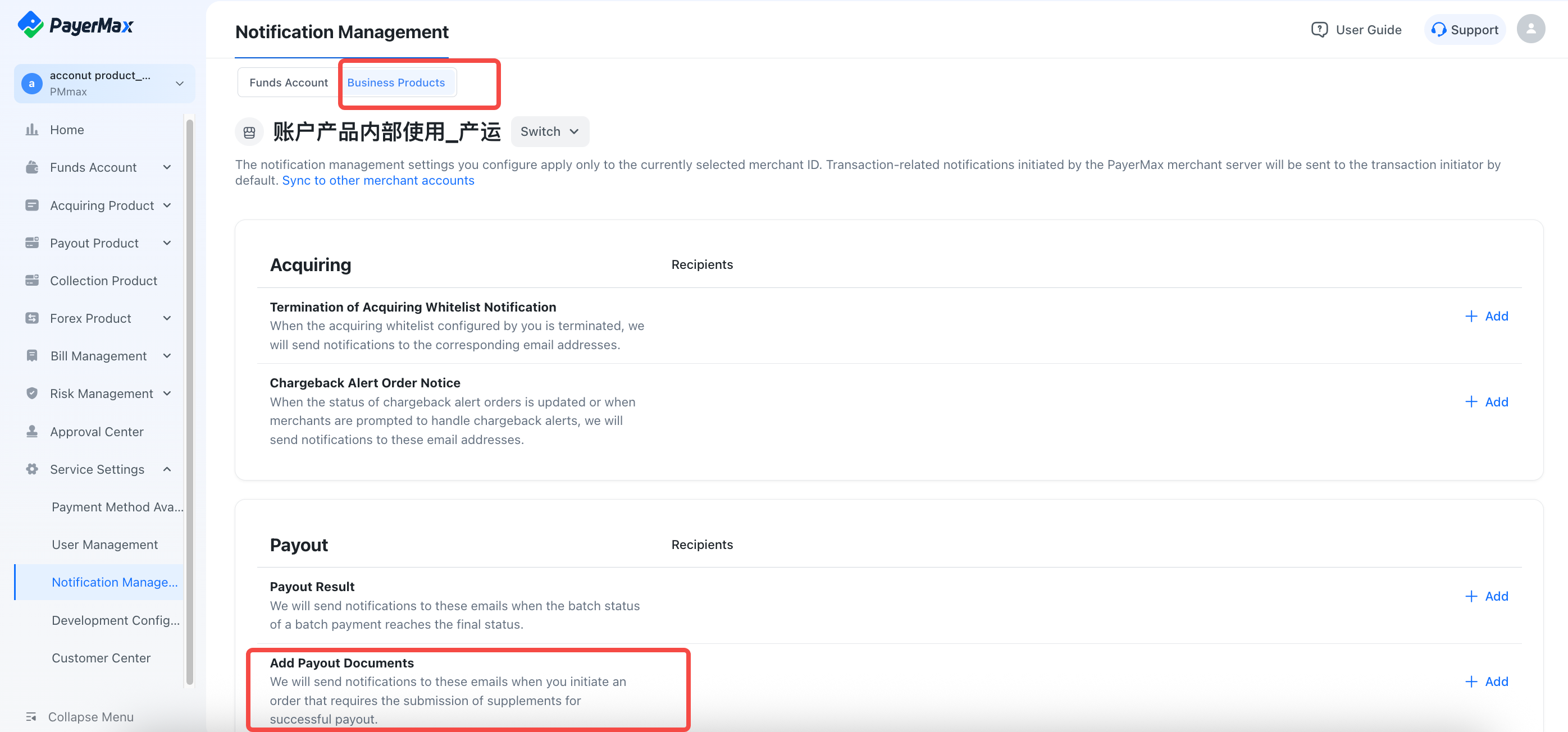
3. How do I configure notification emails for supplementary payout documents?
Configure via - - - .
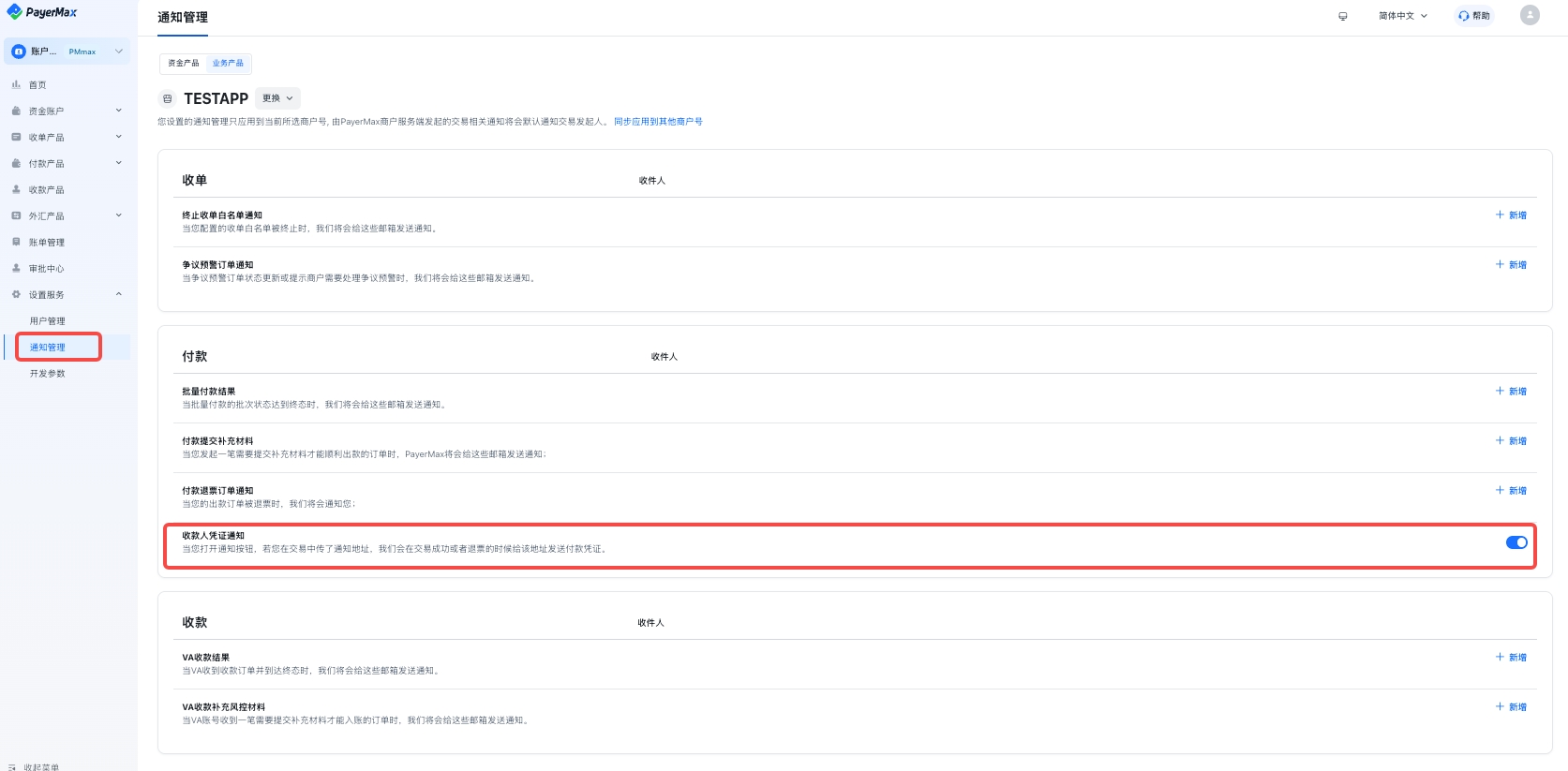
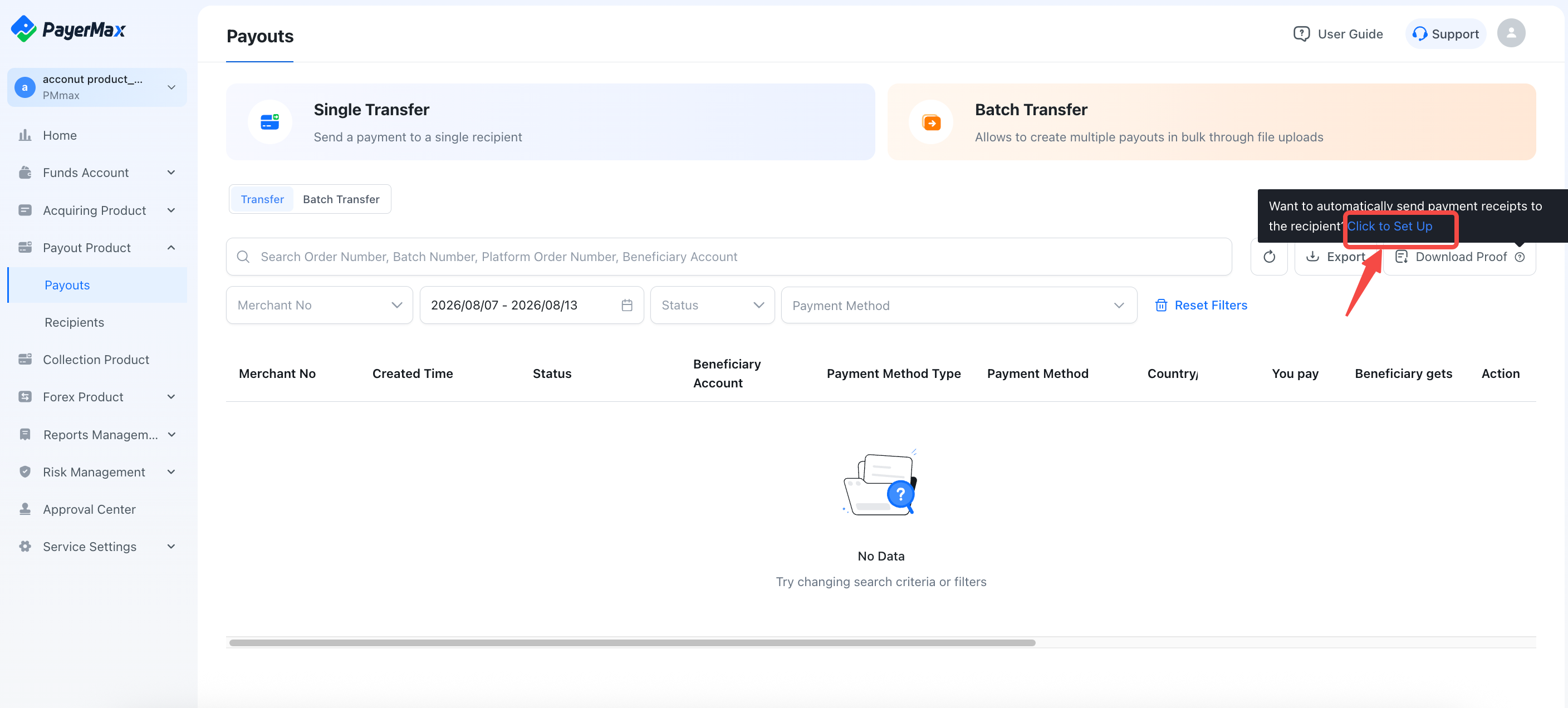
4. How do I enable automatic receipt delivery to payees?
Only supported during batch payouts and API transaction entries. Enable the toggle first at - .
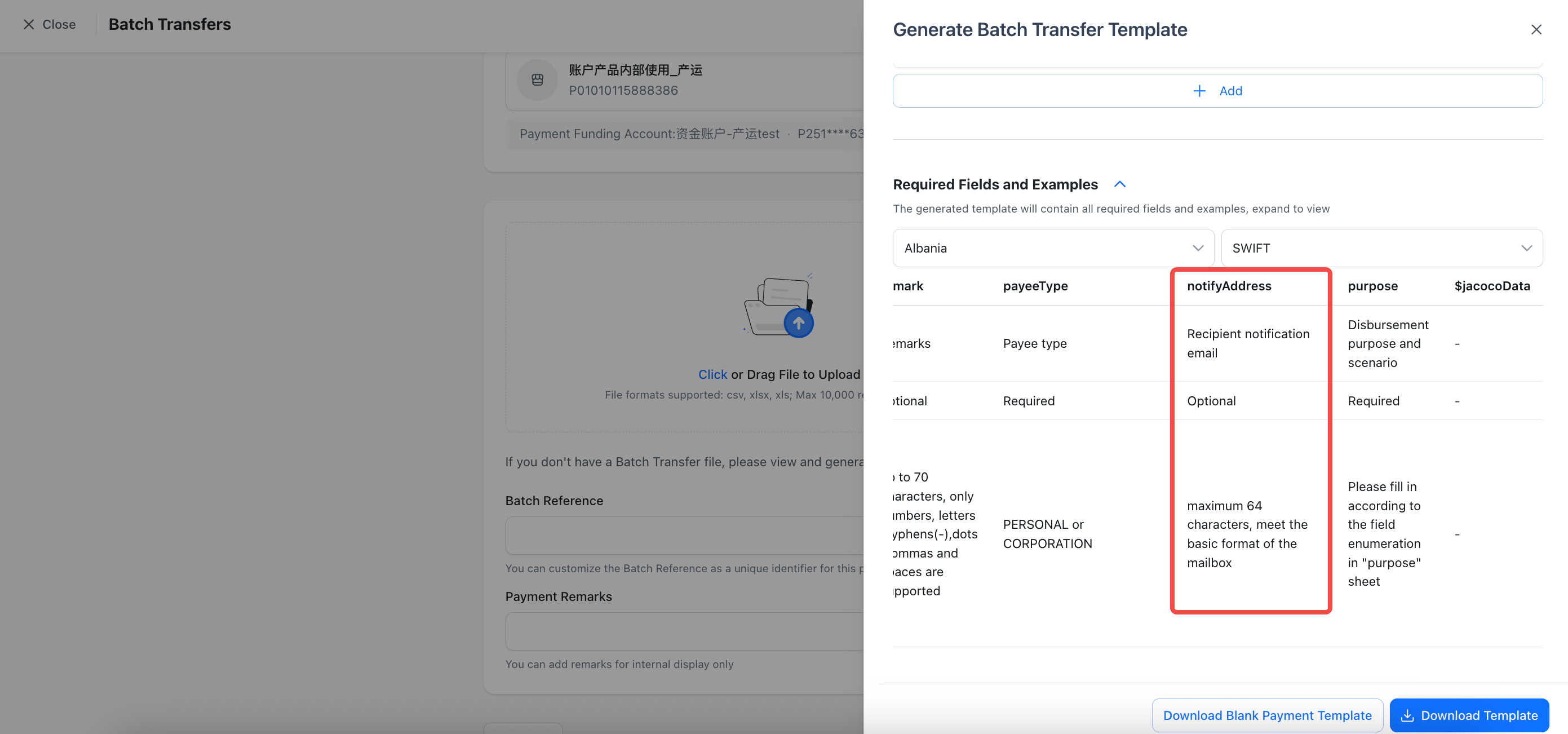
Fill in payee notification emails in the batch payout template:
Quick toggle switch operation:
5. What is the maximum number of payee receipt notification emails allowed?
Enter in the notifyAddress field in the template. Only one notification email per transaction is allowed in batch payouts.
6. Are transaction fees charged for failed payout orders?
For failed payouts and returned orders, order amounts and transaction fees will be refunded to your company account via the original payment route.
VII. Risk Management
1. Under what circumstances might chargeback alerts be needed?
E-commerce merchants frequently face product and logistics issues, leading to a higher probability of consumer chargebacks. Enabling chargeback alerts effectively helps prevent excessive chargeback rate penalties and card network blacklisting risks.
2. How do I enable chargeback alerts?
Please contact your account manager and provide the corresponding Merchant ID to request activation.